Know it’s ready.
VPS
sudo agentvps status
sudo agentvps call health_check '{"browser":true}'Check the workspace identity and each capability. A running service alone doesn’t prove the browser or desktop works.
A real Linux desktop on your own VPS.
Connect your agent. Watch the work. Take over anytime.
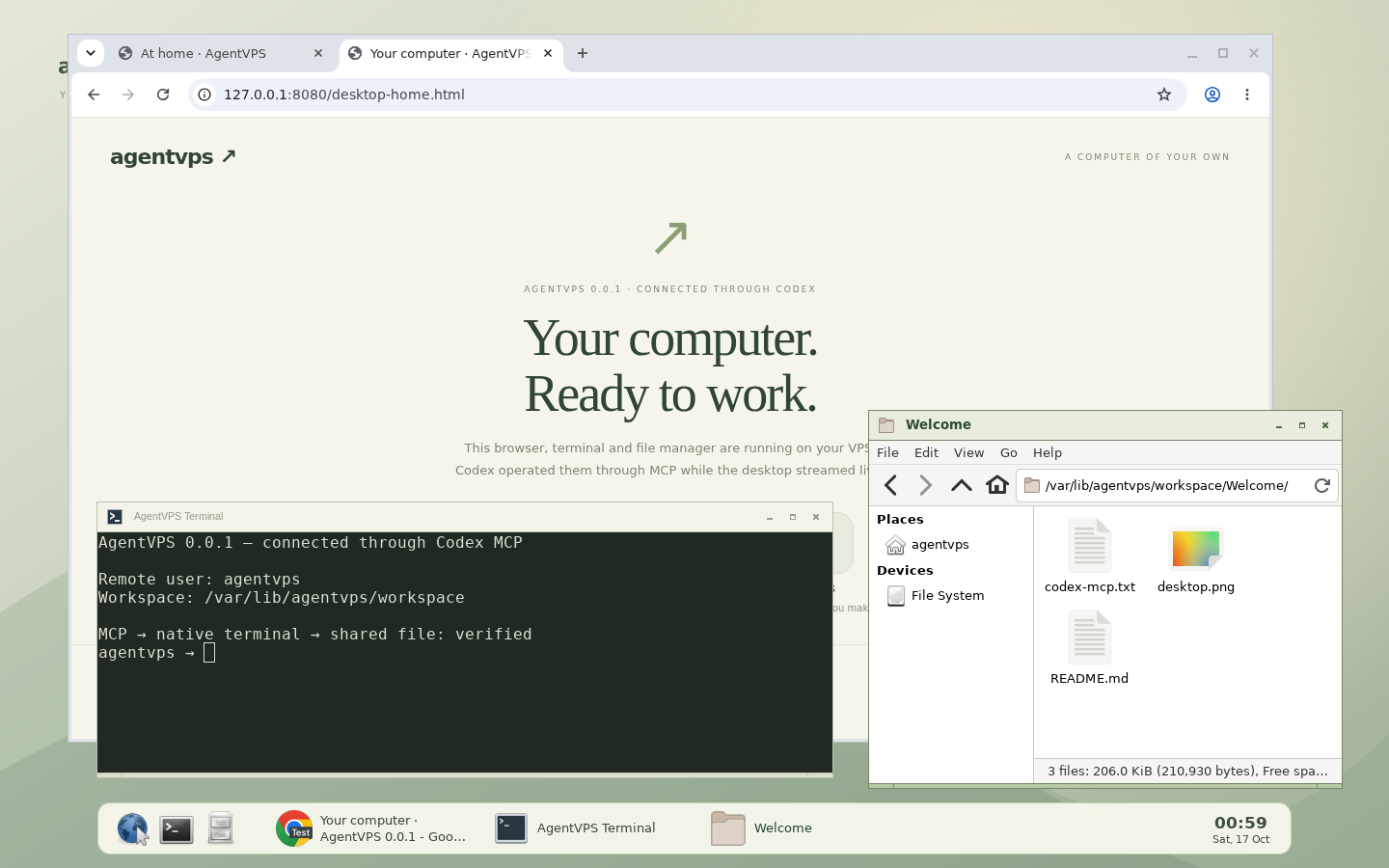
Stream a full Linux desktop. Move windows, change resolution, go fullscreen, or use the mouse and keyboard yourself.
Connect Codex, Claude Code or another MCP client. Its tools operate the same browser and files you see on screen.
Downloads, code and artifacts share one filesystem. Files and the browser profile stay on your VPS between sessions.
Start with an Ubuntu VPS and an SSH login.
The installer takes care of the desktop and tools.
SSH into the computer you want your agent to use. Run:
curl -fsSL https://agentvps.ai-infra.org/install.sh -o install-agentvps.sh
sudo bash install-agentvps.sh
Installs version 0.0.1: the CLI, service, Chromium, and Linux desktop. The download is checked against a pinned SHA-256. Read the installer ↗
Allow TCP 8080 in your VPS firewall, then open http://YOUR_VPS_IP:8080. Retrieve your access token locally and paste it into the login screen:
sudo cat /var/lib/agentvps/tokenKeep this token private. Public IP access uses HTTP; use HTTPS or SSH forwarding for private work. Port 8081 is optional for sharing web previews.
On the computer running your agent, install the client with Node.js 22 or newer:
npm install -g https://github.com/agentsdance/agentvps/releases/download/v0.0.1/agentvps-0.0.1.tgzCopy the token over SSH, then connect. Replace ubuntu with your SSH username if different:
mkdir -p ~/.config/agentvps
umask 077
ssh ubuntu@YOUR_VPS_IP 'sudo cat /var/lib/agentvps/token' > ~/.config/agentvps/vps.token
agentvps connect --url http://YOUR_VPS_IP:8080 --token-file ~/.config/agentvps/vps.token
agentvps status
codex mcp add agentvps -- agentvps mcp
The last line registers Codex. For Claude Code or another MCP client, use command agentvps with arguments ["mcp"]. See the connection config ↓
Give your agent your VPS hostname and SSH username. Use an existing SSH key; keep private keys and access tokens out of chat.
Install AgentVPS on my VPS: <SSH_USER>@<VPS_HOST>.

Follow https://agentvps.ai-infra.org/agent-guide.md
Use my existing SSH access. Keep credentials private.
Verify the desktop and MCP by performing a harmless operation
and showing it on the live desktop. Return the desktop URL,
connection instructions and verification results.Confirms the OS, architecture, permissions and intended VPS before installing.
Calls MCP, operates native apps and checks the resulting files on the same computer.
Your desktop URL and connection instructions, with no credentials in the reply.
The local MCP bridge forwards operations to your VPS. Direct Streamable HTTP MCP is also available at http://YOUR_VPS_IP:8080/mcp with bearer authentication.
{
  "mcpServers": {
    "agentvps": {
      "command": "agentvps",
      "args": ["mcp"],
      "env": {
        "AGENTVPS_URL": "http://YOUR_VPS_IP:8080",
        "AGENTVPS_TOKEN_FILE": "/absolute/path/to/token"
      }
    }
  }
}sudo agentvps status
sudo agentvps call health_check '{"browser":true}'Check the workspace identity and each capability. A running service alone doesn’t prove the browser or desktop works.
Download the next release package, then run:
sudo agentvps upgrade ./agentvps-VERSION.tgzFiles, browser profile and configuration stay. Live commands and app windows close during the restart.
agentvps uninstall --dry-run
sudo agentvps uninstall
Your data stays by default. Add --purge only to permanently delete the workspace and credentials.
Version 0.0.1 supplies the remote computer and tool layer. Bring Codex, Claude Code, or another agent to operate it. Built-in conversations and a model-driven agent loop are planned.
Browser and native desktop actions appear live on the desktop. Background shell jobs appear in Commands, and API terminal sessions appear in Remote desk. Ask your agent to use a native terminal when you want to watch commands being typed.
Your mouse and keyboard control the desktop. New agent browser and desktop mutations are blocked until you return control. Background jobs and actions already in progress continue.
Workspace files, notes, schedules, finished job receipts and the Chromium profile persist. Live commands, terminal sessions, app windows and preview links do not. Disconnecting the viewer alone leaves the remote apps running.
AgentVPS runs as one unprivileged Linux user. It is a single-owner computer, not a multi-tenant sandbox. Commands have that OS user’s permissions. Authentication is required for tools and desktop access.
Run sudo systemctl status agentvps and sudo journalctl -u agentvps -n 50. Check cloud firewall access to port 8080, then run the health check above. Report an issue with version and error details, without your token.